Know before you go.
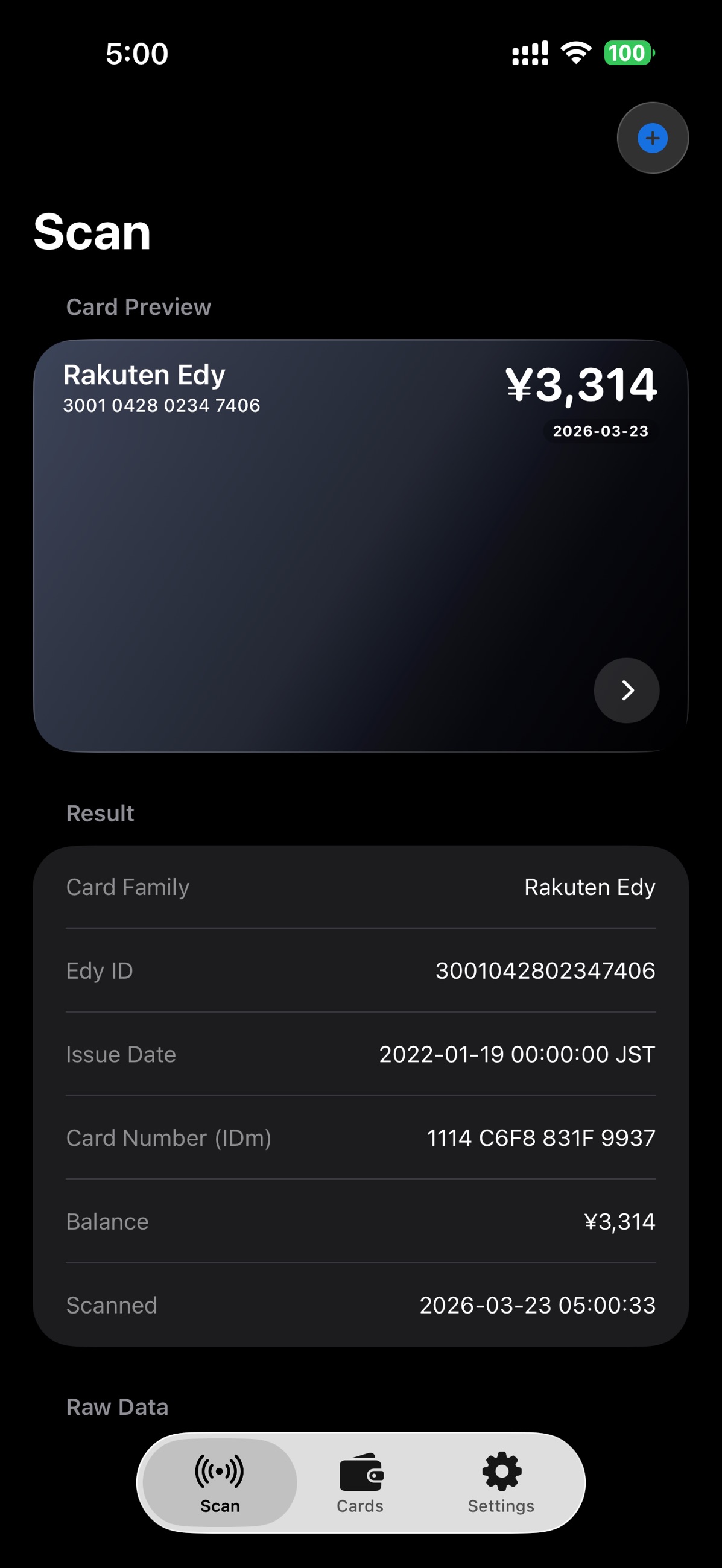
Check a supported physical card’s balance, or read an eligible Apple Wallet card on another device in Service Mode.
 cardbal.
A little tap. A lot more clarity.
From your daily commute to your next adventure. See your transit card balance, rediscover your journeys, and keep it all in one beautiful place.
For NFC-capable iPhones · iOS 16+
Read Apple Wallet cards too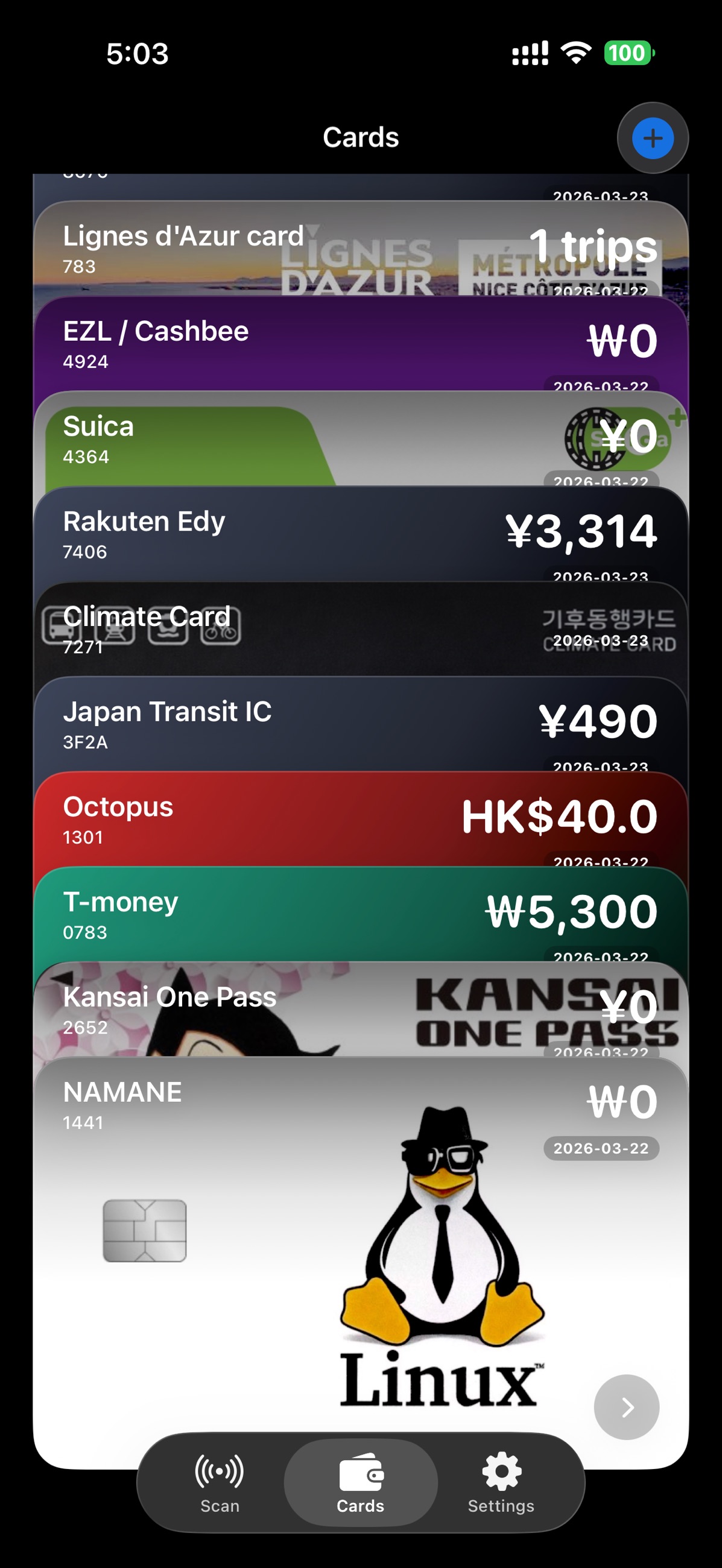
Small app. Big travel energy.
The things you want to know about your cards, made easy to find.
Check a supported physical card’s balance, or read an eligible Apple Wallet card on another device in Service Mode.
Explore the journeys and transactions your card stores, with station names and map views where available.
Save multiple cards, give them names, and make them easy to spot with custom card photos.
Saved cards stay on your device, with iCloud backup and file export when you need them.
Straight from the app.
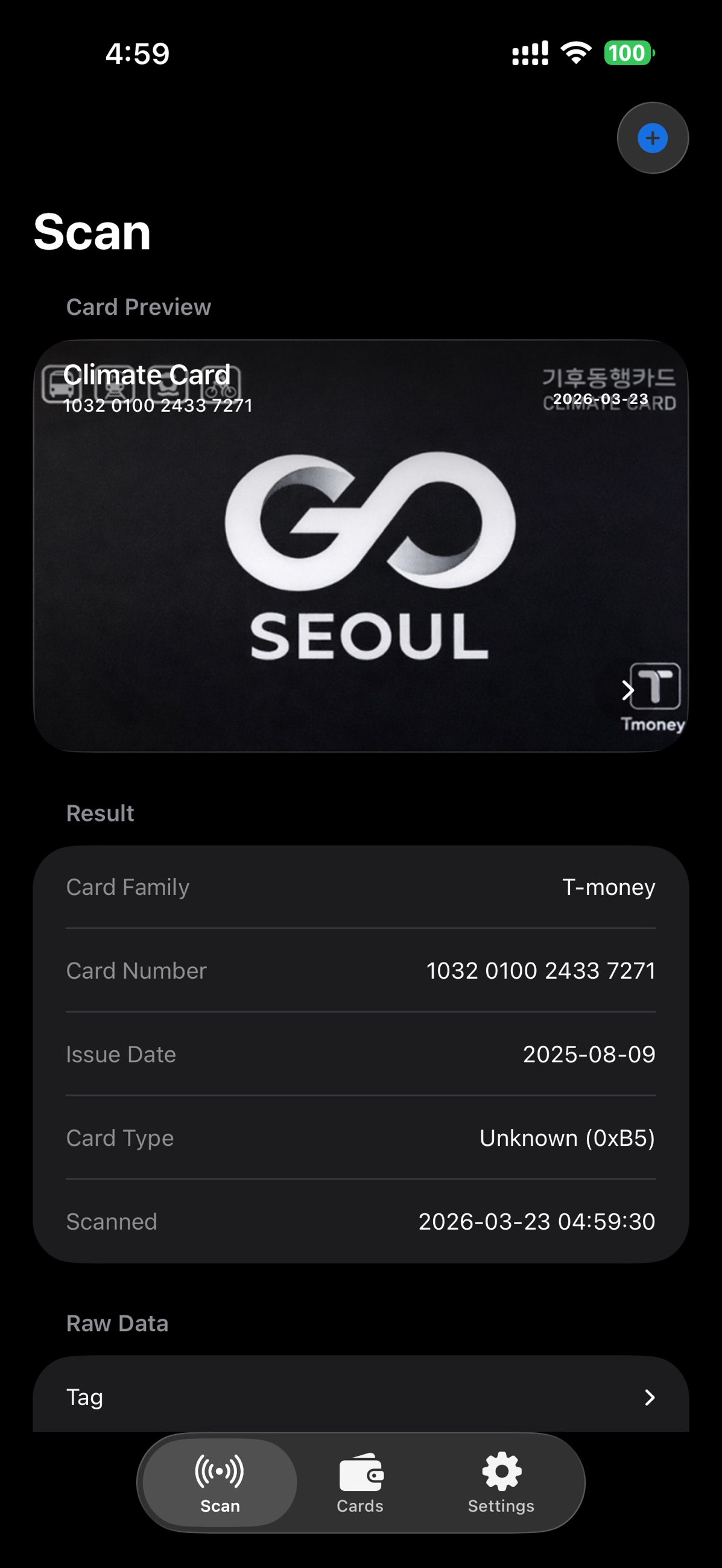
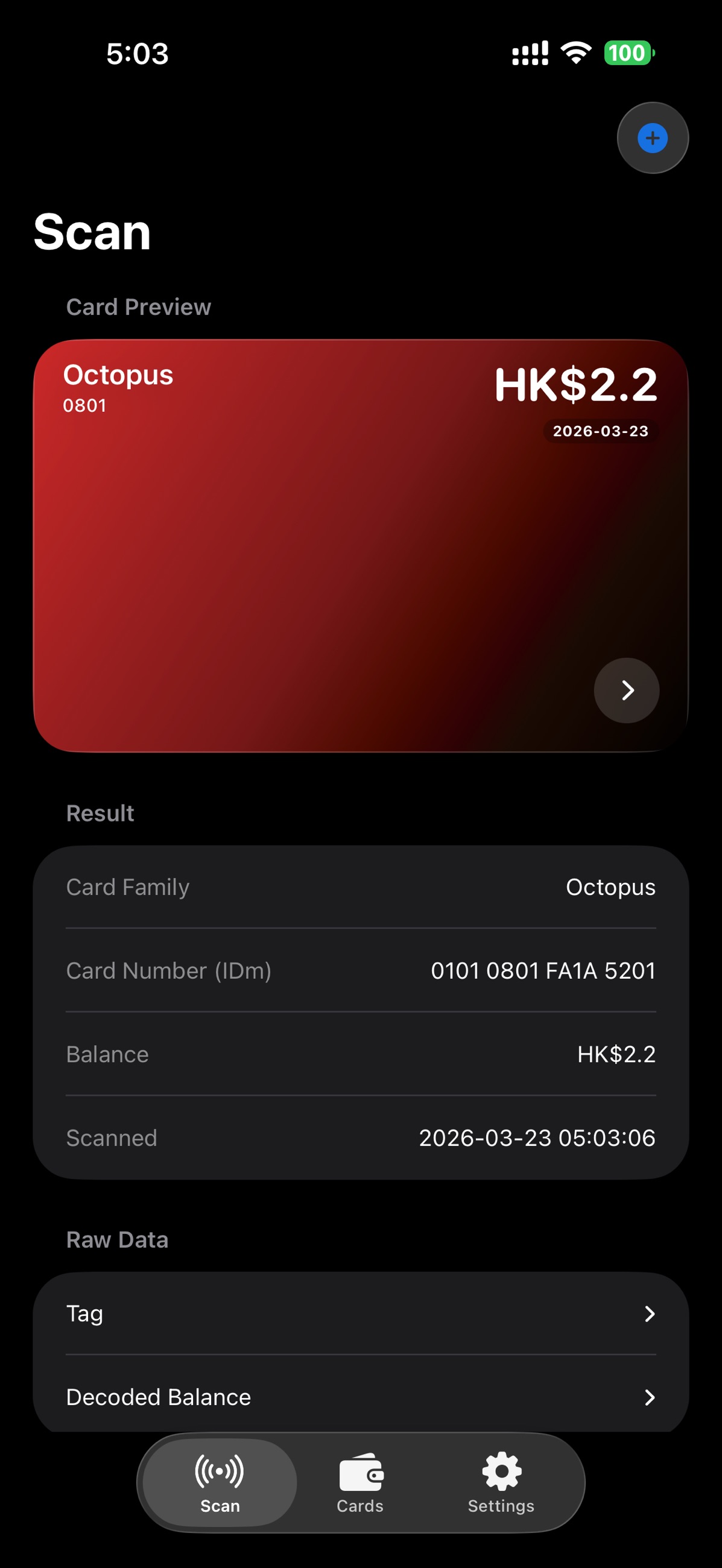
Actual iPhone screenshots from CardBal’s App Store listing. The app interface shown here is in English.
Many places. One familiar app.
A growing collection of transit and stored-value card families, from Tokyo to Ulaanbaatar and beyond.
Suica, PASMO, ICOCA, Kitaca, TOICA, manaca, SUGOCA, nimoca, Hayakaken, OKICA and more. Plus nanaco, Rakuten Edy and WAON.
T-money, EZL / Cashbee and compatible KS X 6924 cards.
China T-Union and City Union card families, including city cards across China.
Octopus cards, with stored balance and available card details.
U-Money cards and Ulaanbaatar transit data.
Lignes d’Azur cards using Calypso.
Available balances and history depend on the card, issuer, and data stored on the card. Support can vary between card versions.
Out of your pocket. Into the know.
Choose to scan a card on your iPhone.
Hold your physical card near the top of your iPhone until the scan finishes.
Check the balance and available trips, then save the card to your wallet.
Already in Apple Wallet?
CardBal can also read a supported Apple Wallet transit card on another iPhone or Apple Watch when that card is in Service Mode.
Apple’s Service Mode guideOpen Wallet on the device that holds your transit card.
On iPhone, open the card’s details and enable Service Mode. For Apple Watch, follow Apple’s guide.
Start a scan in CardBal on a separate iPhone, then bring the two devices close together at their NFC reading points.
Use two devices: one holds the Wallet card, the other runs CardBal. Service Mode availability and readable information depend on the card and issuer.
An NFC-capable iPhone running iOS 16 or later and a supported card. Use a physical card, or a supported Apple Wallet transit card on another device with Service Mode enabled. CardBal uses the iPhone’s built-in NFC reader.
Yes. Put a supported transit card in Service Mode on the iPhone or Apple Watch that holds it, then scan it with CardBal on a separate iPhone. On the card-holding iPhone, open Wallet, select the card, open Card Details, and enable Service Mode where available. Card support and readable information depend on the issuer.
CardBal reads card information. To add credit or pay for a journey, use the card issuer’s official services.
Each card family stores different information and a limited number of records. CardBal displays what it can read and decode; some stations or transactions may be unavailable.
Saved cards are stored on your device. iCloud can sync backups. Optional Korean-card contributions and station reports share the data described in their app disclosures; the app also uses Firebase Analytics. See the privacy policy for details.
Yes. Open a saved card or trip in CardBal to report a missing station or request a station-code correction. You can add a station name, optional details, and a map pin.
Your next journey starts here.
Meet the cards you already carry. Download CardBal for iPhone.
Download on theApp Store